Most people know they should turn on two-factor authentication for their bank. Fewer actually do it, and even fewer know there’s now a faster, stronger option than the six-digit text code they grew up with: a passkey.
Chase started rolling out passkey login on chase.com in early 2026, alongside new anti-deepfake protections for its call centers. Around the same time, 1Password confirmed that Bank of America, Wells Fargo, Citi, Capital One, and U.S. Bank had all added passkey support too. That’s six of the biggest banks in the country moving the same direction at once, which doesn’t happen by accident.
This guide skips the theory. If you want to understand what a passkey actually is and why banks are pushing them, we cover that in our passkeys explained article. Here, we’re just walking through six steps to actually turn this stuff on, in the order that gets you the most protection for the least effort.
Step 1: List Every Financial Account You Actually Use
Before you touch a single settings menu, write down every account that touches your money. Not just your primary checking account. Include your savings account, any credit cards, a brokerage or retirement account, and payment apps like Venmo, Zelle, or PayPal if you use them regularly.
Most people have five to eight financial accounts scattered across different apps, and most have only secured one or two of them. A five-minute list turns a vague chore (“secure my accounts”) into something you can actually finish in one sitting.
Step 2: Find the Security Settings Menu in Each App
Every bank hides this menu in a slightly different spot, which is half the reason people give up. As a rule, look for a gear icon or a section labeled “Security,” “Login & Security,” “Profile & Settings,” or sometimes just “Privacy.” On mobile apps, it’s usually reachable from your profile icon in a corner of the home screen.
Inside that menu, you’re looking for a few specific bank account security settings: two-step verification (sometimes called “2-Step Verification” or “Multi-Factor Authentication”), passkey or biometric login, and backup or recovery codes. Not every bank uses the same label for the same feature, so if you don’t see the word “passkey,” look for “passwordless login” or “sign in with Face ID or fingerprint” instead.
Step 3: Choose Your Method, Strongest First
Not all two-factor methods protect you equally. If your bank gives you a choice, here’s the order that actually matters, from strongest to weakest.
| Method | Relative strength | Vulnerable to phishing | Vulnerable to SIM swapping | Typical setup time |
|---|---|---|---|---|
| Passkey | Strongest | No | No | Under 2 minutes |
| Authenticator app | Strong | Rare | No | 2 to 5 minutes |
| SMS text code | Better than nothing | Possible | Yes | Under 1 minute |
The short version: a passkey is the best option where it’s available. An authenticator app for banking is the next best thing, and SMS codes are still far better than no second factor at all, even though they carry a known weakness called SIM swapping, where a scammer convinces your carrier to move your phone number onto their device.
Step 4: Turn On a Passkey Wherever It’s Already Live
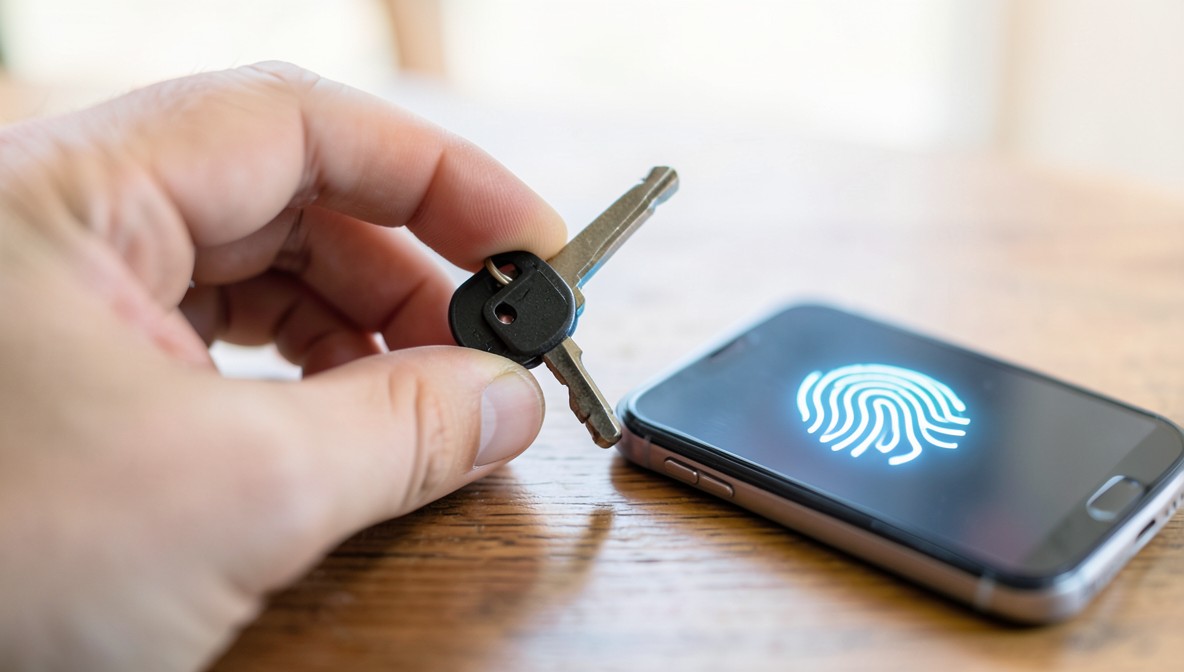
If your bank supports passkeys, this step usually takes under two minutes. You’ll tap something like “Set up passkey” or “Enable passwordless sign-in,” then confirm with the same fingerprint, face scan, or PIN you already use to unlock your phone. Your device creates the credential in the background. There’s nothing to write down and nothing to memorize.
A quick note on Chase and Bank of America specifically: as of mid-2026, both have passkey support live for login on their main apps and websites, though the exact menu wording may vary depending on your app version and account type. If you don’t see the option yet, it may simply not have reached your account or region.
Step 5: Save Your Backup Codes and Set a Recovery Method
This is the step almost everyone skips, and it’s the one that saves you the worst headache later. When you turn on two-factor authentication, most banks generate a set of one-time backup codes meant for exactly one scenario: you lose or replace your phone.
- Download or write down the backup codes and store them somewhere other than your phone, like a locked drawer or a password manager’s secure notes.
- Confirm your recovery email and phone number are current, since that’s usually the fallback when backup codes aren’t handy.
- Never read a backup code or one-time code out loud to someone who calls you, even if they claim to be your bank. That script shows up constantly in scams, including the AI voice cloning tricks we cover in this guide, where a caller’s voice is faked to sound like a relative or a bank representative asking you to “verify” a code.

Step 6: Run the Final Checklist
Before you close out of every app, confirm these five things for each account on your Step 1 list:
- Two-factor authentication is turned on, not just available.
- You’re using the strongest method that account offers (passkey, then app, then SMS).
- You’ve saved backup codes somewhere outside your phone.
- Your recovery email and phone number are current.
- You’ve actually tested the login once, logging out and back in, so you’re not troubleshooting this during an emergency.
That last one matters more than it sounds. A method that’s “set up” but never tested is exactly where people get stuck when they need it most.
Where the 6 Biggest U.S. Banks Stand on Passkeys, as of Mid-2026
Passkey rollout isn’t uniform, and availability can change fast, so treat this as a general starting point rather than a guarantee for your specific account. Based on reporting from American Banker and 1Password’s own product documentation, here’s roughly where things stand as of mid-2026.
| Bank | Passkey support (mid-2026) | Typical menu path |
|---|---|---|
| Chase | Live for chase.com login, rolling out in-app | Profile & Settings, then Security & Sign-In, then Passkey |
| Bank of America | Live | Settings, then Security Center, then Sign-In Settings |
| Wells Fargo | Live | Settings, then Security, then Manage Sign-On |
| Citi | Live | Profile, then Security Settings, then Passkey Login |
| Capital One | Live | Account Settings, then Security, then Passkeys |
| U.S. Bank | Live | Profile, then Security & Login, then Passwordless Sign-In |
If your bank isn’t listed here, or hasn’t rolled out passkeys to your account tier yet, an authenticator app for banking is still a strong second choice, well ahead of relying on SMS alone.
A Quick Note on Financial Safety
This article is for general information only and isn’t personalized financial or security advice. Passkey availability, menu labels, and recovery processes vary by bank and can change without notice, so always confirm the current steps on your own bank’s official app or website before making changes. For broader guidance on account security and fraud prevention, the Federal Trade Commission (FTC), the Cybersecurity and Infrastructure Security Agency (CISA), and the FIDO Alliance all publish consumer resources.
For related reading, see our guides on whether Chime is a safe place to keep your money and how to freeze your credit at all three bureaus if you think an account may already be compromised.
Frequently Asked Questions
Which is safer: a passkey, an authenticator app, or a text message code?
A passkey is the strongest option where your bank offers it, since it’s tied to your device and can’t be phished or intercepted the way a text code can. An authenticator app for banking is a close second, generating a code that never travels over your phone’s cellular network. SMS codes are the weakest of the three because of SIM swapping, but they’re still far better than no second factor at all.
How do I set up a passkey for my bank?
Open your bank’s app or website, go to the security or login settings section, and look for an option labeled “passkey,” “passwordless sign-in,” or “biometric login.” Confirming with your fingerprint, face scan, or device PIN usually finishes the setup in under two minutes.
Do Chase and Bank of America support passkeys yet?
As of mid-2026, both have added passkey support for signing in, according to 1Password’s product documentation and reporting from American Banker. Exact availability can depend on your app version and account type, so check your own app’s security settings to confirm.
What’s the main downside of two-factor authentication?
The most common complaint is time. Adding a second step means login takes a few extra seconds compared to a password alone. For banking, that small trade-off is worth it, since the alternative is an account that’s one leaked password away from being drained.
What should I do if I lose the phone with my authenticator app on it?
Use the backup codes you saved when you first set up two-factor authentication, then contact your bank to update your device and reissue new codes. This is exactly why Step 5 above matters: without those codes, recovering access can take a lot longer.
Is SMS-based two-factor authentication still worth using?
Yes, if it’s your only option. SMS codes are vulnerable to SIM swapping, but an account protected by SMS codes is still dramatically safer than one with no second factor at all. Upgrade to a passkey or an authenticator app when your bank offers one, but don’t skip two-factor authentication altogether while you wait.